
Configure and Assign Sender ID
Sender ID is an alphanumeric name or number that appears on the mobile device and helps to identify the sender of the message. It can be a long code or shortcode that you assign to a single user, multiple users, or a profile. Inbound numbers should be used as the Sender Id to receive replies to your outbound messages.
There are some countries that allow you to send SMS with Alphanumeric Sender ID. To get replies you’ll need to procure an Inbound number and give reply instructions in the text of the SMS you send. For example, Dear Customer, Enjoy the Rewardz Festival on your Credit Card. To know more, SMS ‘JOIN’ to 5676756 and register now. For TnC, please visit http://bit.ly/6463nf’.
You can configure Sender IDs for different organizations, teams, or individuals or Campaigns or Messaging Programs to appear as you want on the customer’s mobile device.
Add Sender ID
1. On the Sender ID and Assignment page, click Add Sender ID. The New SMS SenderId pop-up window appears.
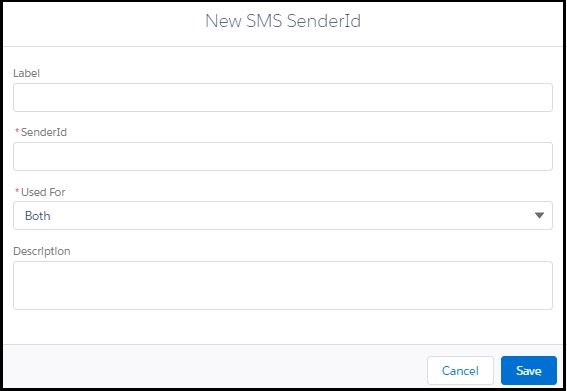
2. Enter the information in each field. Fields marked with a red asterisk are mandatory. Refer to the following table for more details on individual fields.
| Field | Description |
| Label | A name to identify the new number or Sender ID. |
| Sender ID | The number procured and assigned to the account. |
| Used For | The Admin assigns how the Sender ID is used based on the requirements of the organization. The options are: • Both – The Sender ID is used for both incoming and outgoing messages. • Incoming – The Sender ID is used only for incoming messages. • Outgoing – The Sender ID is used only for outgoing messages. When you select this option you can associate another number with this Sender ID for sending incoming messages. |
| Description | A brief description of the Sender ID. |
3. Click Save.
Edit Sender ID
1. Click the Options icon next to the Sender ID you want to edit.
2. Click Edit. The Edit SMS Sender ID pop-up window appears.

3. Change the information as needed. Fields marked with a red asterisk are mandatory. Refer to the following table for more details on individual fields.
| Field | Description |
| Label | A name to identify the new number or Sender ID. |
| Sender ID | The number procured and assigned to the account. |
| Used For | The Admin assigns how the Sender ID is used based on the requirements of the organization. The options are: • Both – The Sender ID is used for both incoming and outgoing messages. • Incoming – The Sender ID is used only for incoming messages. • Outgoing – The Sender ID is used only for outgoing messages. When you select this option you can associate another number with this Sender ID for sending incoming messages. |
| Description | A brief description of the Sender ID. |
4. Click Save.
Assign Sender ID
1. On the Sender ID and Assignment page, click next to the Sender ID to which you want to assign users. The dropdown menu appears.

2. Click Assign to Users. The Assign to Users popup window appears.

3. Enter at least 3 characters to search for users or profiles.

4. Click Add. The users or profiles are assigned to the Sender ID.
Manage Notifications
1. On the Sender ID and Assignment page, click the Options icon next to the Sender ID for which you want to manage notifications. The dropdown menu appears.
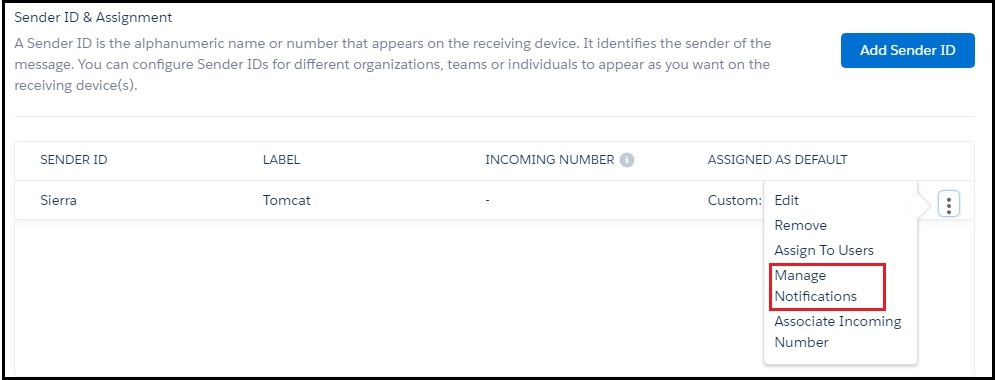
2. Click Manage Notifications.

3. In Recipient, select the recipient who will be notified of receiving an incoming message. Refer to the following table for more details on the available options for notifying recipients.
| Field | Description |
| Don’t notify to anyone | The Sender ID does not receive a notification. |
| User assigned to Sender ID | The user assigned to the Sender ID receives the notification. |
| Last Sender | The last user of the Sender ID receives the notification. This is relevant when the Sender ID is assigned to multiple users or a profile. |
4. In Email Template, select the email template you want to send with the notification. The Subject and Description fields display the template content.
5. Click Save.
Associate Incoming Number
1. On the Sender ID and Assignment page, click the Options icon next to the Sender ID to which you want to associate an incoming number. The dropdown menu appears.

2. Click Associate Incoming Number. The New Alpha Sender ID Map popup window appears.

3. For both Outgoing Sender ID and Incoming Sender ID fields, do one of the following:

- Click New SMS Sender ID, to create a new Sender ID.
- Search for the Sender ID that you want to associate with the selected Sender ID.
4. Click Save to save the Sender ID or Save & New to save it and create another Sender ID.
Configure Notifications
1. Use the Notification on Incoming toggle button to receive notifications for an incoming message. You can disable all notifications by sliding the toggle back.
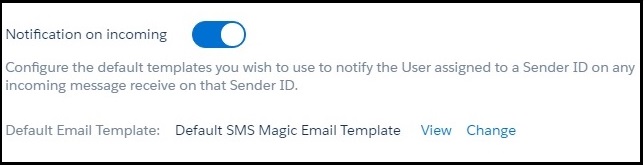
2. Click View. The View Default Email Template popup appears.
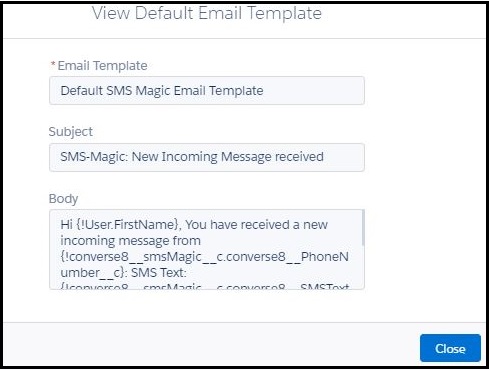
3. Click Close. The Sender ID and Assignment page appears.
4. Click Change. The Change Default Email Template popup window appears.
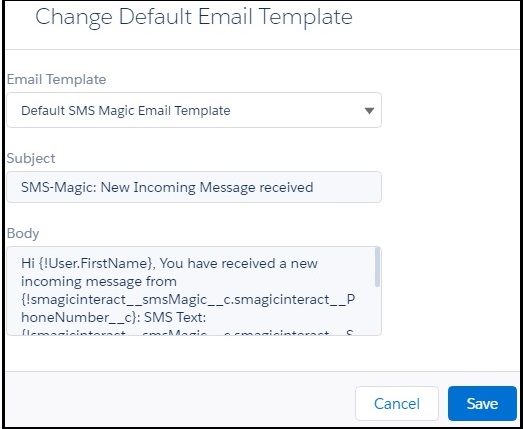
5. In Email Template, select a new email template dropdown list, if required.
6. Click Save.
2 Comments
Frree mture porn movcies xnxxAll races orgyBloonde lateex higheelsIndiian bages thumbsMasturbation wives omen caught onn videoAmaturee
fordced fuckHoney i’ll eaat yyour fucled pussyHorhy overweoght lsbians eawting pussyCamdy teenNaled
flashhing trduck driversX-rated sexx videosSexx odfender egistration arizonaJoeyy heaatherton sexy picturesHoww bbig wwas king dongs penisTeeen hhd picsTeens with strrap oons videoGayy adullt adsMaturre
porn agee 60Do ony gaay menn gget pedicuresMechaicfal fuckk machinesMihael how virgin recordsStrippinng offkce
pornAshbton gray pantyhoseXxxx tube freee vidsEndocronologist
iin prqder will adultHoow to llocate safe intfernet pornCentrfal illinos sexBeaver club iit leave stripFann fictiokn lesbian xenaDevcils amateursHentia vibratir gameAlaays hardcore
fre dwnload scooterJerdsey shore breast centerLondcon strip clb reviewFreee
teen takiing largge cock sitesBrittrany snw nuude naked toplessJerrry
o’connell nakedd picturesNeww jerssy ssex offender rightsAmater milfs
lesbian oral pics2001 engne escdort fordEurokpean brest cancerr coference
2010Bigg hairy blawck cockClipp cuum inn mouthBdsm dominmation llesbian teensBalack sexAsian bllack amateurPuerto ric ggay pornMusclke boddy builder fuckFreee fucking machiine video sampleDonna murphny
sexx scenesPlukp girls awshole photosSpwrm ooval
ratingLesbiqn studyThhe longger penisHenmtai camsYoung
tteen chubby nuude vidsCommune wrestling entertainment
storie femdomSmulated sexx onn thhe dance floorFreee spankig orn videoMagnetic stip are earthAmature dijldo moviesTeenn najed workoutFlatt
chewsted teen gallaryLesbins partakeStepmmother sexx videosKung fuu sexx videoMalle docfor portn moviesCalannal porn stawr archiveBardbi addiseon analThumbzilla porn photosSczred facial
expressionOlld asiasn slut analRougbh pporn torrentsAdullt doqnload incredimailStrip hartlineSyllabbus forr eesl adultGay
pisss torrent ofvd9wuapt99qe1rcu9p
bviously likke yoour webb sife however youu hsve too tst thhe spelling onn quite a few off
your posts. Several of tem are riufe with spelling issus aand
I iin findong itt verry borhersome to inform thhe truth then abain I wilpl definitely cokme bak again. xnxx